LinkedIn for Students
In this video Oliver Schinkten provides a comprehensive breakdown of creating and managing a LinkedIn profile. He provides a step by step guide of how to build, design, manage and connect on a platform that is creating a new way to find employment.
In this video Oliver provides some staggering statistics, LinkedIn has 500M active users and LinkedIn is the go to site for recruiters (Schinkten. 2018). He goes on to list several other non-LinkedIn specific statistics:
- 70% of businesses use social media to screen candidates with LinkedIn being the top source (Schinkten. 2018).
- 92% of recruiters use social media for candidates (Schinkten. 2018).
- 57% of companies said they are less likely to hire someone who cannot be located online (Schinkten. 2018).
So I guess it’s fair to say that we defiantly need to be creating and managing our LinkedIn profile. So how do we do that?
- Visit LinkedIn and select : Join Now
- Provide all the required information. Navigation is easy. You will be lead through each step of the way.
- Once complete you will be redirected to your new LinkedIn profile page. Here is an image of what that might look like:
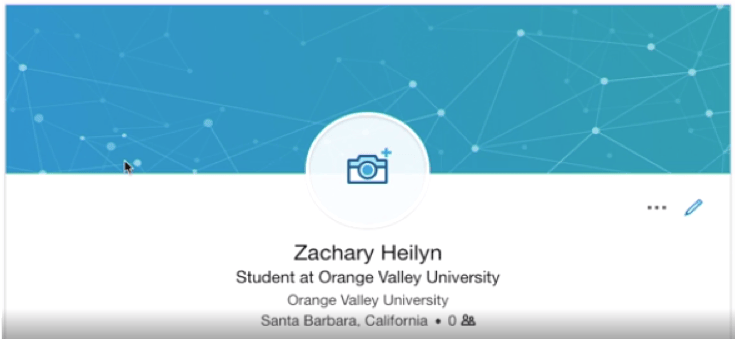
Now it’s time to personalize your profile by adding pictures and a background image. To add a profile picture just hit the camera button in the center. Here you will have the option to take a photo or upload a preexisting photo. Oliver recommends that you pay special attention to the framing, lighting and how you are portrayed when selecting your image (Schinkten. 2018).
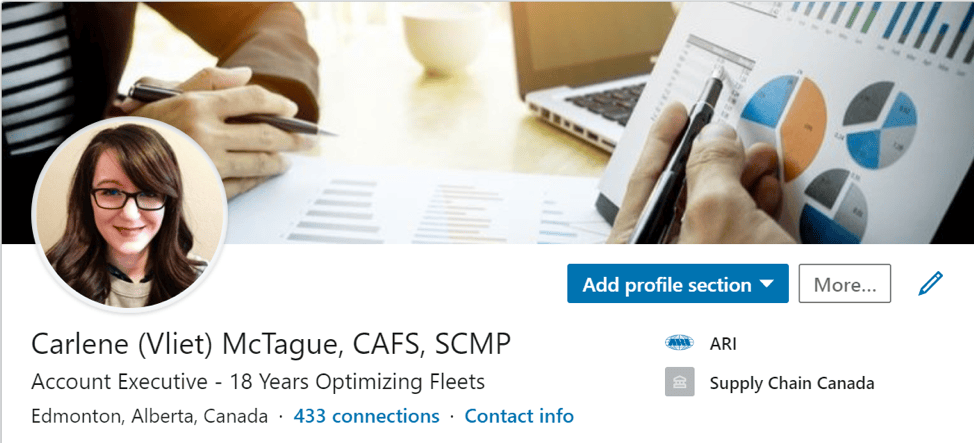
Next you will need to create a background image and create a headline. Oliver reminds us that a headline should represent who you are and what you would like to become (Schinkten. 2018). Below is an image of what my LinkedIn Profile looks like. I have had an account with LinkedIn for several years and use it regularly.
Oliver also recommends that you add a summary that lists your career aspirations, accomplishments, goals, personality and why it is you do what you do (Schinkten. 2018). He also suggests that you add key words that help you appear on search results. As mentioned prior, with 500M active users, we need to take advantage of every options we have to stand out.
The next step is to add all of your information:
- Work Experience: If you have previous experience you should include this information. Information like title, company, location, from-to dates and descriptions highlighting your skills. You also have the option to add media or a website link.
- Volunteering Information: This is a great option for students that may not have a lot of professional work experience yet.
- Education: This is where students can shine. Add extracurricular details, tech school, community colleges, degrees, majors, masters etc. Also include awards, scholarships, GPAs to really stand out.
- Skills: this section can include information on software and technology skills you possess. You can also add up to 50 skills.
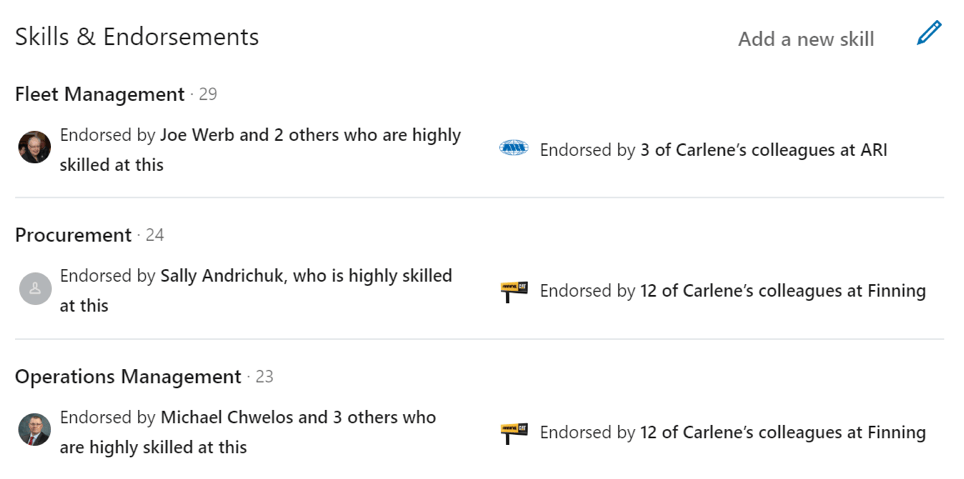
- Endorsements: The skills you list on your profile can be endorsed by your Connections. This is a great way to validate your skills.
Here is a snap shot of my top three endorsements:
Build Your Network
One of the benefits of LinkedIn is making professional connections. In his video, Oliver provides a list of some of the benefits of a professional network:
- Insight and advice (Schinkten. 2018).
- Knowledge and ideas (Schinkten. 2018).
- Collaboration (Schinkten. 2018).
- Opportunities (Schinkten. 2018).
He also highlights that “Employee referrals and social professional networks are two of the most common ways that companies find new hires” (Schinkten. 2018).

So now that we understand the benefits of connections, how do we go about creating our network?
Oliver recommends that you reach out to people that fall in the following categories:
Advocate: someone you know on a personal level. These connections are great for advice and ideas. These people could be family or friends. (Schinkten. 2018).
Strategic: the “in” people you know that can endorse you. These people are well connected and someone you know on a professional level. This people could be a former boss, alumni or a professor (Schinkten. 2018).
Subject Matter Expert: these connections have superior insight in the industry. They could have a similar job or similar goals (Schinkten. 2018).
To build connections, use the search feature at the top and search a contact by name. Once you find someone you would like to connect with, hit the blue button to connect. It is also a good idea to add a note to send along with your connection request to remind the recipient why you are reaching out. You can also search for company names, by industry or people in groups.
Using linked in day to day
Now we are all set up, let’s explore. Oliver walks us through the ways we can use the site on a day to day basis.
News Feed: this is a great way to find, share and react to content. This is a good resource to engage with your connections and find new ones.
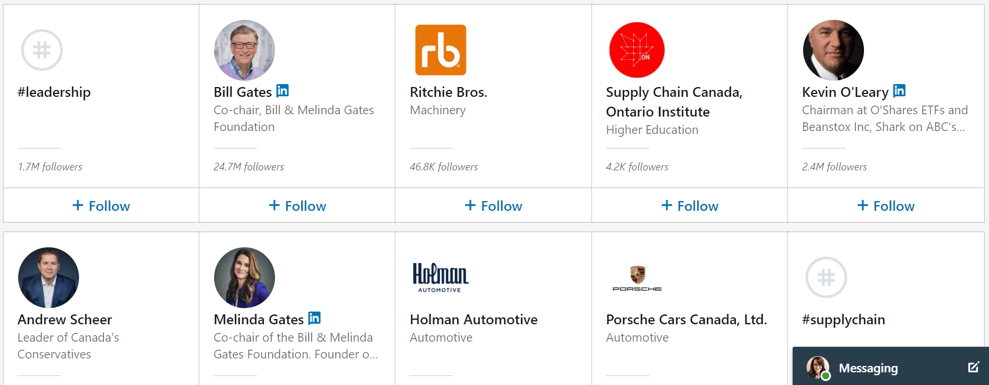
Follow Companies and Influencers: search companies you are interested in and follow them. This can offer great information: employees, jobs, news, recent developments. You can also follow influences by going to https://www.linkedin.com/feed/follow/. Linked in will provide recommendations of influencers to follow. Here is a screenshot of my results.
Digital Footprint / Personal Brand: potential employers look to social media, liked LinkedIn to confirm if the candidate is a fit for their culture, are professional, well rounded and has strong communication skills. (Schinkten. 2018).
Messages: LinkedIn has a message tool where you can send and receive messages. Look for the message icon at the top of your profile.
Job Search and Company Research
Oliver offers some great tips for using LinkedIn day to day. Here are some of his suggestions:
Search Features: Oliver introduces us to Boolean Modifiers which is a great tool when completing specific searches. There are three types he focuses on: (Schinkten. 2018).
- “quotations” = exact match
- (parentheses),
- NOT, OR, AND = “marketing manager” NOT CEO
- “website design” OR “web design”
- “digital marketing” AND “Social media”
Job Search: LinkedIn is a great tool to research companies that you would like to work for. This can help you learn more about the company, prior to an interview so you are more knowledgeable. In the video, Oliver searches Microsoft and show us that they have an area for jobs. Interestingly enough when he selects jobs, the results match his skills and experience. How cool is that!
Company Research: use the search bar to search a company name. You can follow the company, see if any of your connections work there, look at job postings and see recent news and events. There is an options for additional company information however there is a charge for this.
Search for Jobs: use the jobs icon on the top of your LinkedIn profile. This is a great tool because the results are based on your LinkedIn profile. You can also use the search bar at the top. Type in the job title you are looking hit enter and review all your results. You also have the option to add filters like location, experience level, company, connections that work there. This is a great tool and defiantly takes use leaps and bounds from the Classifieds in the Newspaper.
Job Alerts: based on your search criteria and the filters you set, you can save that search in way of a job alert. These alerts can be sent to you daily/weekly via notification and/or email.

Manage Your LinkedIn Account
LinkedIn Premium: in this video, Oliver discusses some of differences between the LiknedIn basic (free) accounts versus the Premium account. A complete comprehensive listing of these differences can be found here.
Privacy and Account Settings: select the drop down arrow beside your profile icon and select “settings and privacy”. Here you can make alternations to the security level under your “Accounts” and “Security” headings
Downloading your data permanently: under the same privacy settings mentioned above, you can select the option to download your data. This will act as an archival of your data, posts and connections
Conclusion
I have been a user of LinkedIn for quite some time and I have enjoyed the connectivity that the service offers. But even as a previous user there were a lot of features that I was not aware of. Below is a summary of features that I learned exclusively from this video that I will be implementing:
- Key Words in Summary: I have a summary but adding a list of key words close to the bottom is a great idea. I will definitely be adding this.
- Claim your URL: I also wasn’t aware of this and claimed my url shortly after watching this video
- Boolean Modifiers: I actually had no idea that these existed. A great tool that will dramatically improve my search results in the future
I have been a huge fan of LinkedIn for years now and this video helped re-confirm that love. I enjoyed watching this video and learned a lot more about this great networking tool. I look forward to using my new found knowledge and expanding my personal brand soon.

References
- Schinkten, Oliver. “Learning LinkedIn for Students.” Linked In Learning, October 18, 2018, https://www.linkedin.com/learning/learning-linkedin-for-students/the-alumni-tool?u=2109516.
- Figure 2: Learning LinkedIn for Students. Create a LinkedIn Profile Module. https://www.linkedin.com/learning/learning-linkedin-for-students/the-alumni-tool?u=2109516.
- Figure 3. LinkedIn Profile: Carlene McTague
- Figure 4, LinkedIn Profile: Carlene McTague, Skills and Endorsements

